
Running the Example Application   

<<< Introduction Chapters Example Application Source Code >>>

Contents

The Example Application has a single window that contains a menu bar, toolbar, and a viewing area that is initially empty.
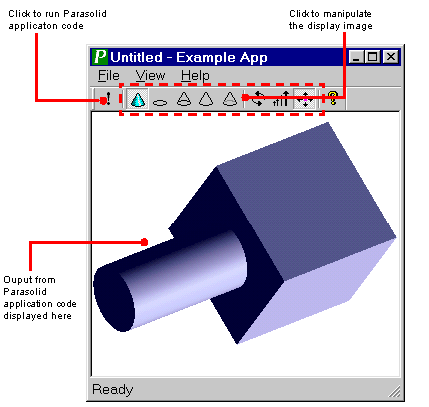
 

Figure 2-1 The Parasolid Example Application

[back to top]


2.1 Buttons in the toolbar

The tool bar in the example application contains a number of buttons, as described below:


Click this button ...

To perform this action ...


Run the Parasolid application code that you want to prototype. This calls CMyCode::RunMyCode and then displays the output from the calls to Parasolid functions as follows:

  • If the code is written as a series of steps (using a case statement) a single step is completed and the output at that point displayed. To perform the next step, click
  • again.
  • If the code is written as one large fragment, the parts present when the code has completed are displayed.


Display the current state of the bodies in the Parasolid session in shaded, wireframe, wireframe with silhouettes, hidden line, and gray hidden line modes respectively.

Note: Orphan geometry is only displayed in wireframe mode.


Rotate, zoom into or out from, or pan the view respectively, using the mouse button.


Display version information about the Example Application.


[back to top]

<<< Introduction Chapters Example Application Source Code >>>